Why does my log footage look flat?
A plain-language guide to log footage, input and output transforms, and avoiding the double-conversion mistake in DaVinci Resolve.
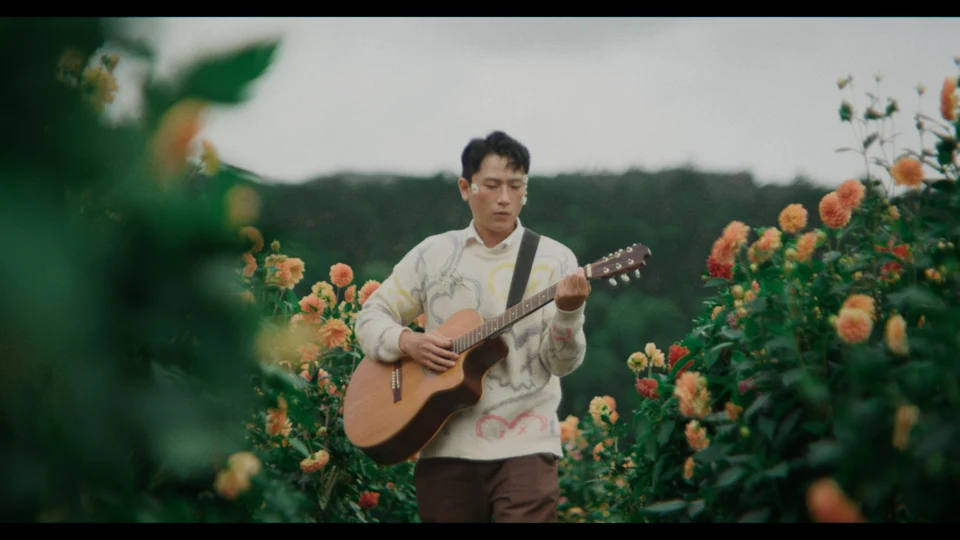
Log footage often looks low in contrast when displayed without the right conversion. Prepare it using the actual recording format before choosing a creative look. A flat-looking picture alone does not tell you which camera profile to select.
What does “log” mean?
A log curve is a way of encoding brightness information in the recorded image. It is usually part of a camera recording option intended for later processing, rather than a finished display appearance. The accompanying color gamut describes how the recorded color values are interpreted.
That is why increasing contrast until the image looks punchy is not the same as correctly interpreting the recording. You might like the first impression while still making later adjustments harder to predict.
Also, not every low-contrast clip is log. Haze, soft lighting, or an earlier adjustment can produce a similar appearance. Phone footage may be SDR or HDR. Start with information about the file rather than its appearance.
Find out what was recorded.
Before changing your project, collect three details:
- The recording profile and gamut. Check the camera settings used on the shoot, reliable file metadata, or ask the camera operator.
- Whether the file has already been processed. An exported clip may have a look or display conversion baked into it, even if the original camera footage was log.
- The intended delivery. An SDR web video and an HDR delivery need different output decisions.
The camera model alone is not enough: one camera can record several formats. If you are unsure, write down what you know and ask for help before committing a whole project to a guessed profile.
Think in three stages.
Resolve’s color management handles conversions between camera information, the space used for grading, and the intended output. Blackmagic Design explains these controls in its color management overview.
- Input preparation: interpret the recording correctly and convert it into the working space your workflow expects.
- Grading: balance and style the shot while it is in that working space.
- Output preparation: convert the result for the intended display or delivery.
For JuicyGrade Studio 🧃, the supported node inputs are DaVinci Wide Gamut / Intermediate and ACEScct / AP1. The tool’s Working Space setting must match what actually reaches the node. It is not a menu for selecting your camera model.
Choose one method for managing the conversions.
A color-managed Resolve project can handle input and output transformations through project and clip settings. A manually managed workflow can put explicit Color Space Transform effects on nodes. Both approaches require correct settings; they should not accidentally duplicate the same conversion.
Before copying a tutorial’s node tree, check which approach that tutorial uses. Adding a log-to-Rec.709 conversion to footage already converted by project color management can produce a harsh, overly saturated image. Removing it at random can also break a correctly prepared project.
When using JuicyGrade Studio 🧃, follow the workflow supplied with the download and place the tool at the appropriate working-space stage. The product does not include your final display transform. The DCTL and LUT guide explains why the expected input matters.
If the picture looks wrong, check the setup first.
Save a copy of the project before troubleshooting. Temporarily neutralize creative changes so you can inspect preparation on its own.
- Still flat? Check whether the expected output conversion is present and enabled.
- Suddenly harsh or oversaturated? Look for a duplicated conversion, a wrong input profile, or a look that already includes a display conversion.
- Only one clip looks wrong? Check that clip’s recording information and any per-clip input setting. It may differ from the rest of the timeline.
- The export looks different? Check export color settings and the player/display used for comparison before changing your whole grade.
These are things to investigate, not diagnoses from appearance alone. If you ask for help, include your recording profile, project color settings, node order, and intended output. Share a short clip only when you have permission.
Once preparation is consistent, continue with your first-grade workflow: balance, choose a look, and check the result in motion.
Further reading
- Blackmagic Design: professional color management
- Blackmagic Design: the Colorist Guide and practice lessons
This is an introduction to the decisions involved, not a universal transform preset for every camera or delivery format.
One clip. One clear next step.
Explore the looks, check the software requirements, and choose the tool that fits your workflow.
JuicyGrade 🧃 tools require DaVinci Resolve Studio.